Body
Overview
The Intelligent Agents tool monitors a course to find activity that matches the criteria that you set. The criteria that agents search for can include login activity, course activity, and release conditions in Brightspace. Use Intelligent Agents to automate communication, monitor learner engagement, identify students who meet specific criteria, and take selected actions when those criteria are met.
Example uses for agents include:
- Emailing users with grades below a certain level
- Checking for users who have not logged in within a specific number of days
- Checking for users who view a specific content topic
When you set up an intelligent agent, you must decide on the following:
- What the agent is looking for
- How often the agent will run
- What action the agent takes
- Whether the agent acts once or every time criteria are met
Important: Agents check conditions at the moment they run. This means a user who met the condition earlier may not meet it later, especially for “NOT” conditions.
Best practices for using agents include:
- Use a consistent naming convention so the purpose of each agent is clear.
- Use the Description field to add notes or reminders about what needs to be updated each term.
- Decide if the agent should repeat, such as sending reminders regularly.
- Use replace strings to automatically personalize emails.
- Avoid creating too many agents, especially if the information can be shared with students in another way.
Instructions
You can add a link to the Intelligent Agents tool to your course’s navbar.
- From the Admin Tools menu, select Navigation and Themes.
- Click the link for the navbar in which you want to add a link to the Intelligent Agents tool.
- On the Edit Navbar page, in the Links area, click Add Links.
- In the Add Links dialog box, select the Intelligent Agents check box.
- Click Add, and then Save and Close.
Note: Access to Navigation and Themes may depend on your role permissions.
Create a New Agent
Create an agent that will perform an action, such as sending an email, based upon the criteria you set.
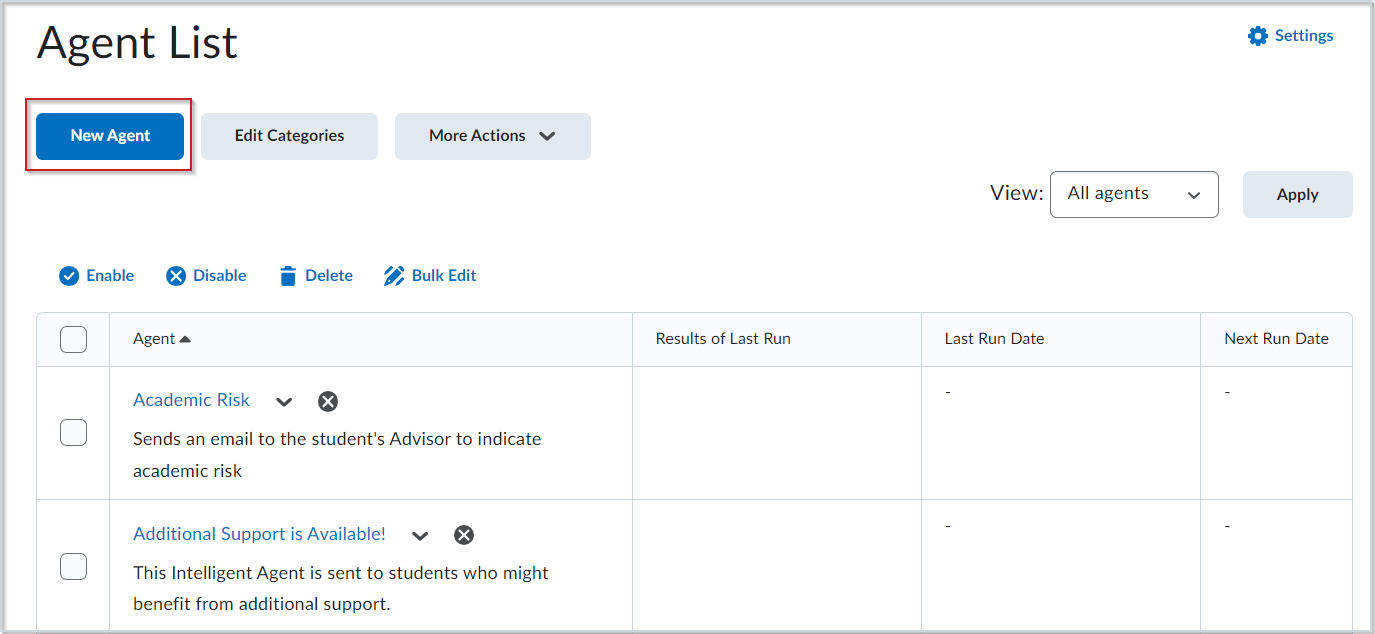
- Navigate to Course Admin > Intelligent Agents.
- Click New Agent.
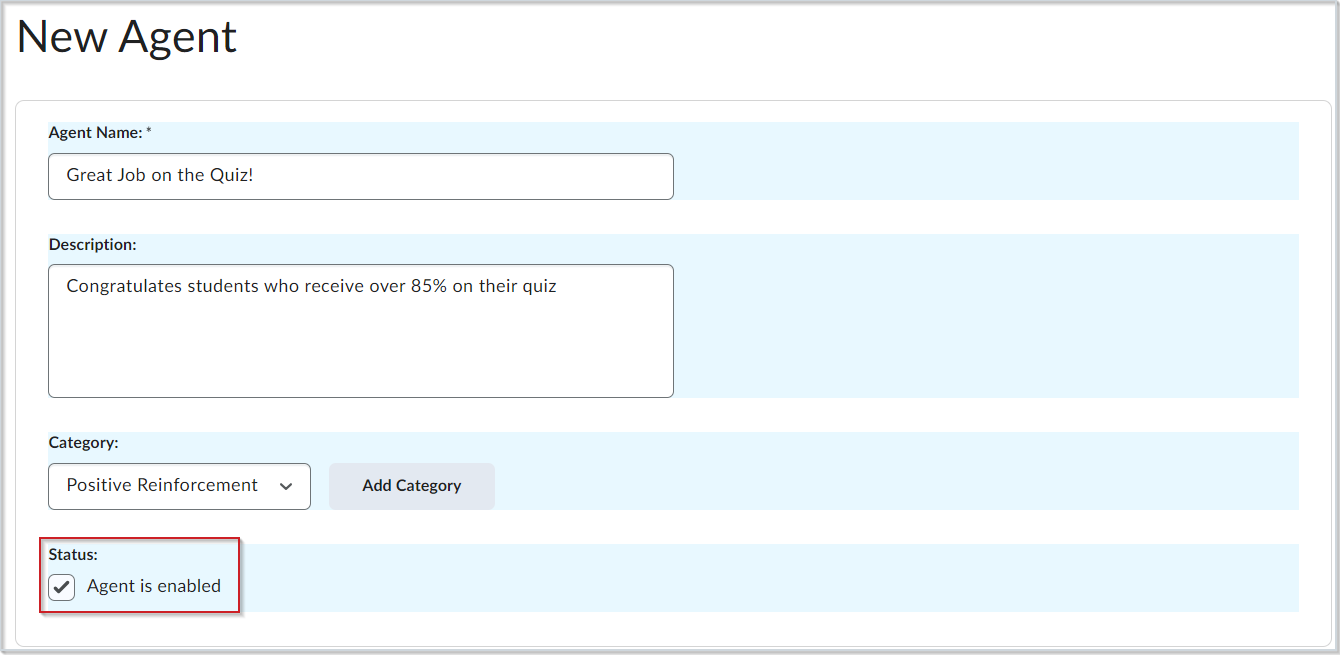
- Enter an Agent Name.
- (Optional) Add a Description of the agent.
- (Optional) Select a Category. To create a new category, click Add Category, add a Name, and then click Save.
- Navigate to Status and select Agent is enabled to have the agent enabled upon creation.
Schedule the Agent
Once you have set the general description and status of your new intelligent agent, you can choose how often the agent will run and evaluate the criteria you define.
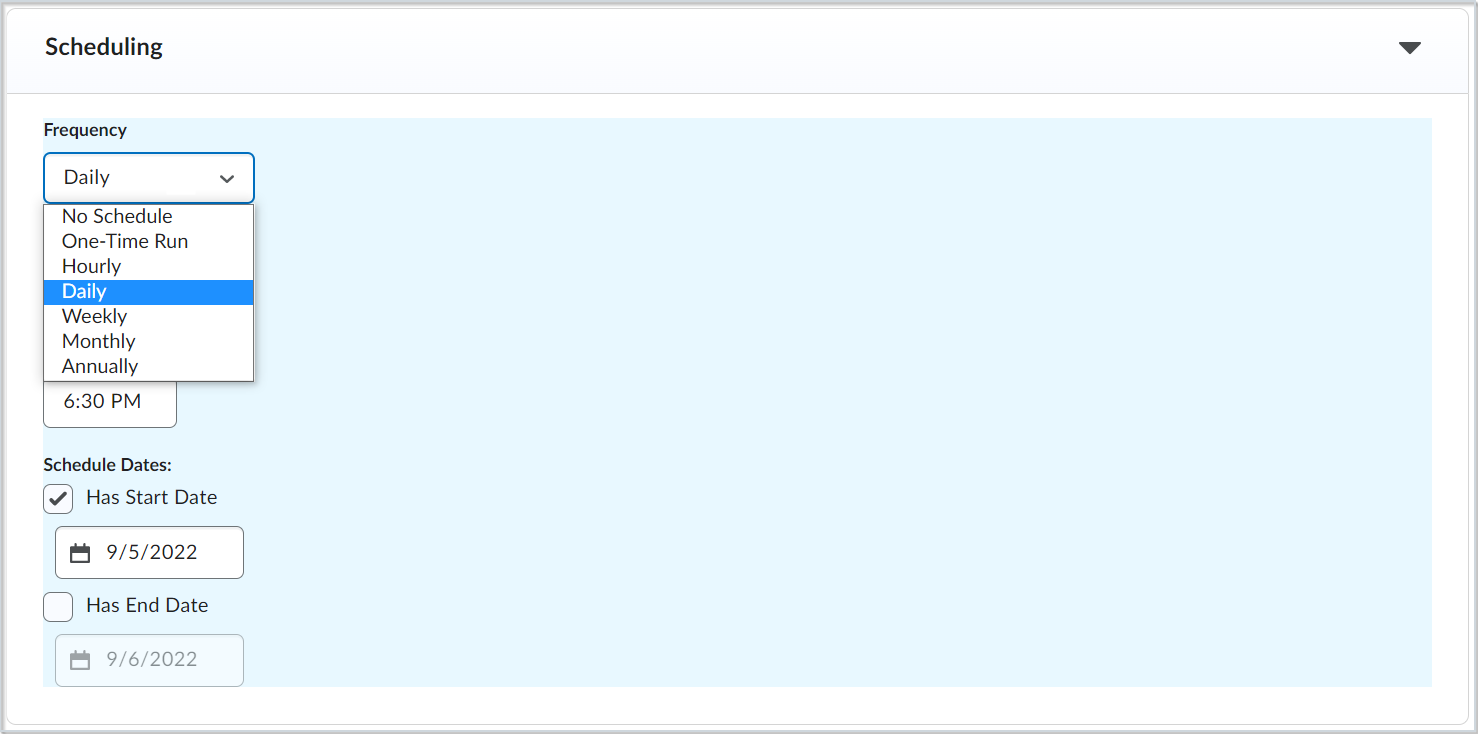
- From the New Agent page, click to expand Scheduling.
- Select a Frequency and enter the criteria based on that frequency.
Note: Intelligent Agents can be scheduled to run before the course start date. Scheduled intelligent agents stop running and are automatically disabled if the course is inactive, past its end date, or deleted. You can still set up a practice run or a manual run of an intelligent agent at any time in a course with a passed end date.
If you set a schedule, the agent runs automatically. If you do not set a schedule, you must run the agent manually from the Agent List page.
Define Criteria and Target Roles
You must set the criteria your intelligent agent will review when it runs. This includes which user roles the agent will focus on and which activity prompts the agent to take action.
Define the target roles
- From the New Agent page, expand Criteria.
- Under Role in Classlist, do one of the following:
- To have the agent be applicable to all roles in the Classlist, select All users visible in the Classlist.
- To have the agent be applicable to select roles, select Users with specific roles and select the desired roles.
Define the activity that prompts action
- From the New Agent page, expand Criteria.
- Under Take Action on Activity, select one or more of the following options:
- Login Activity runs the agent if the user either has or has not logged into the platform during the last specified number of days.
- Course Activity runs the agent if the user either has or has not accessed the course in the last specified number of days.
Note: Neither Login Activity nor Course Activity can be selected if the agent's Frequency is set to Hourly or One-Time Run.

Attach Release Conditions
You can select and attach release conditions to your intelligent agent. These will prompt your agent to take action once the specific release conditions are met.
- From the New Agent page, expand Criteria.
- Click Release Conditions.
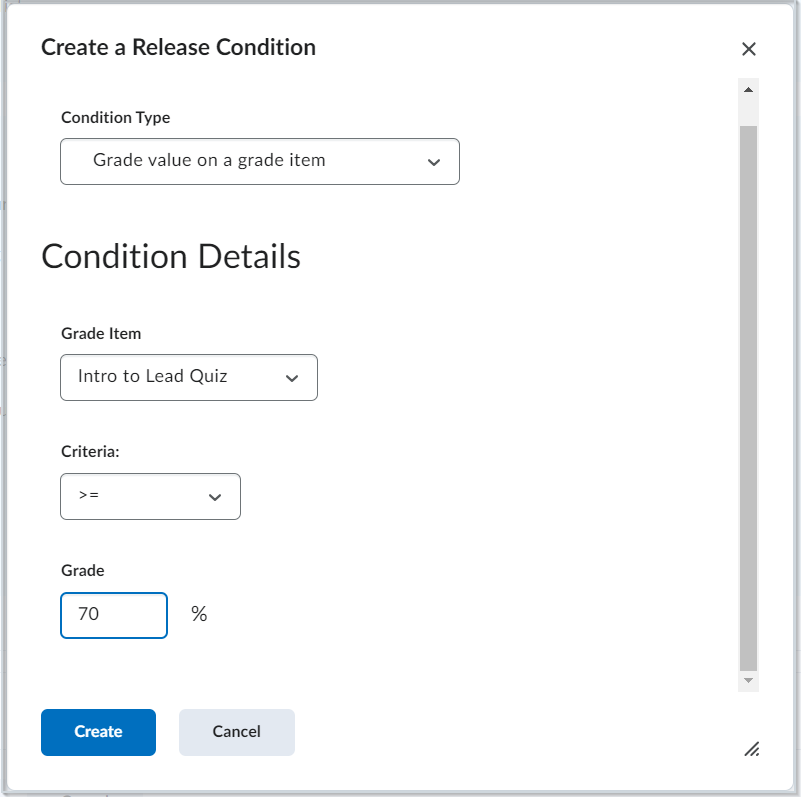
- To create a new release condition, click Create and do the following:
- Select a Condition Type.
- Select your Condition Details based on that type.
- Click Create.
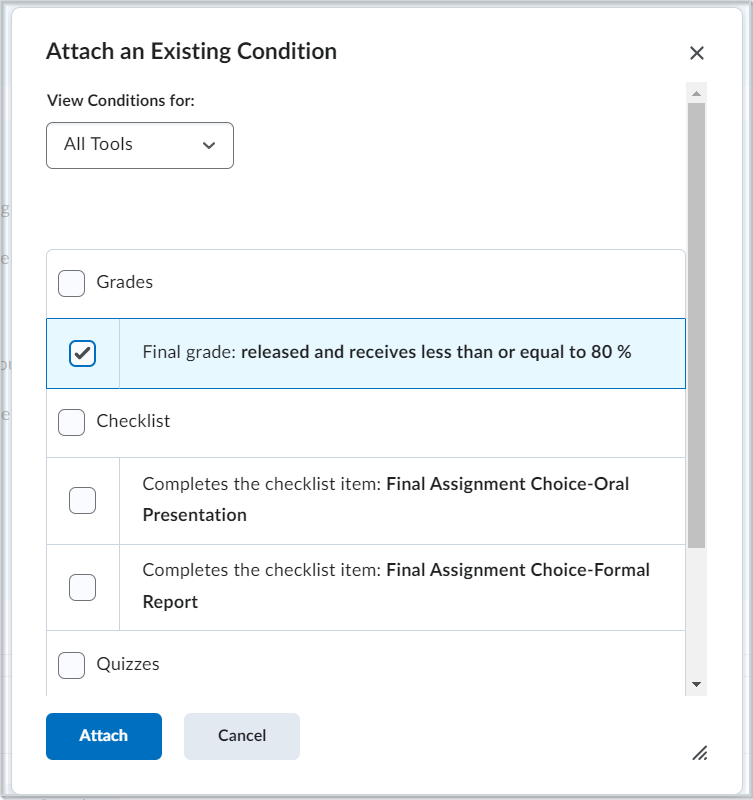
- To select an existing release condition, click Browse and do the following:
- Under View Conditions for, select a tool to filter your conditions.
- Select the desired condition and click Attach. Multiple conditions can be selected.
Define Agent Actions
You can define what actions you want your intelligent agent to take and how often, once your defined criteria has been met.
Set repetition
- From the New Agent page, expand the Actions section.
- Under Repetition, select one of the following:
- Take action only the first time the agent’s criteria are satisfied for a user
- Take action every time the agent is evaluated and the agent’s criteria are satisfied for a user
Send an email
- From the New Agent page, expand Actions.
- Under Send an Email, select the Send an email when the criteria are satisfied check box and enter your email details and applicable attachments.
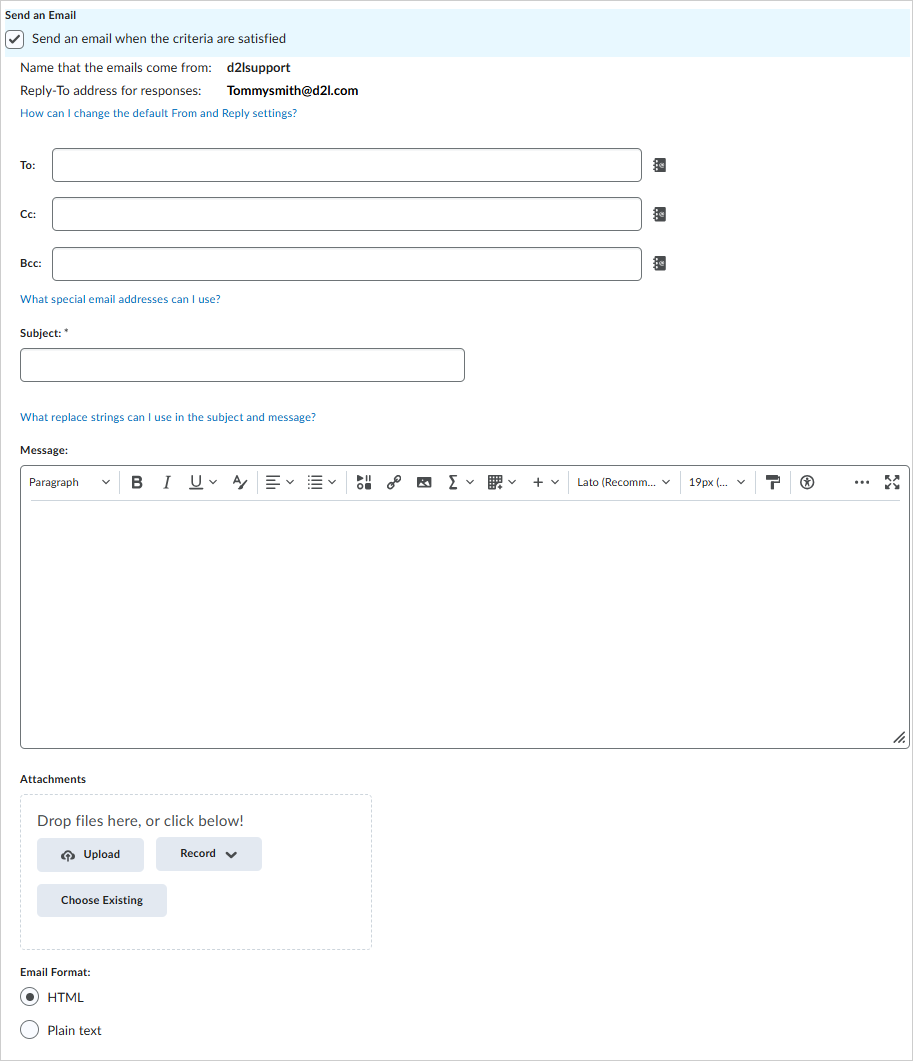
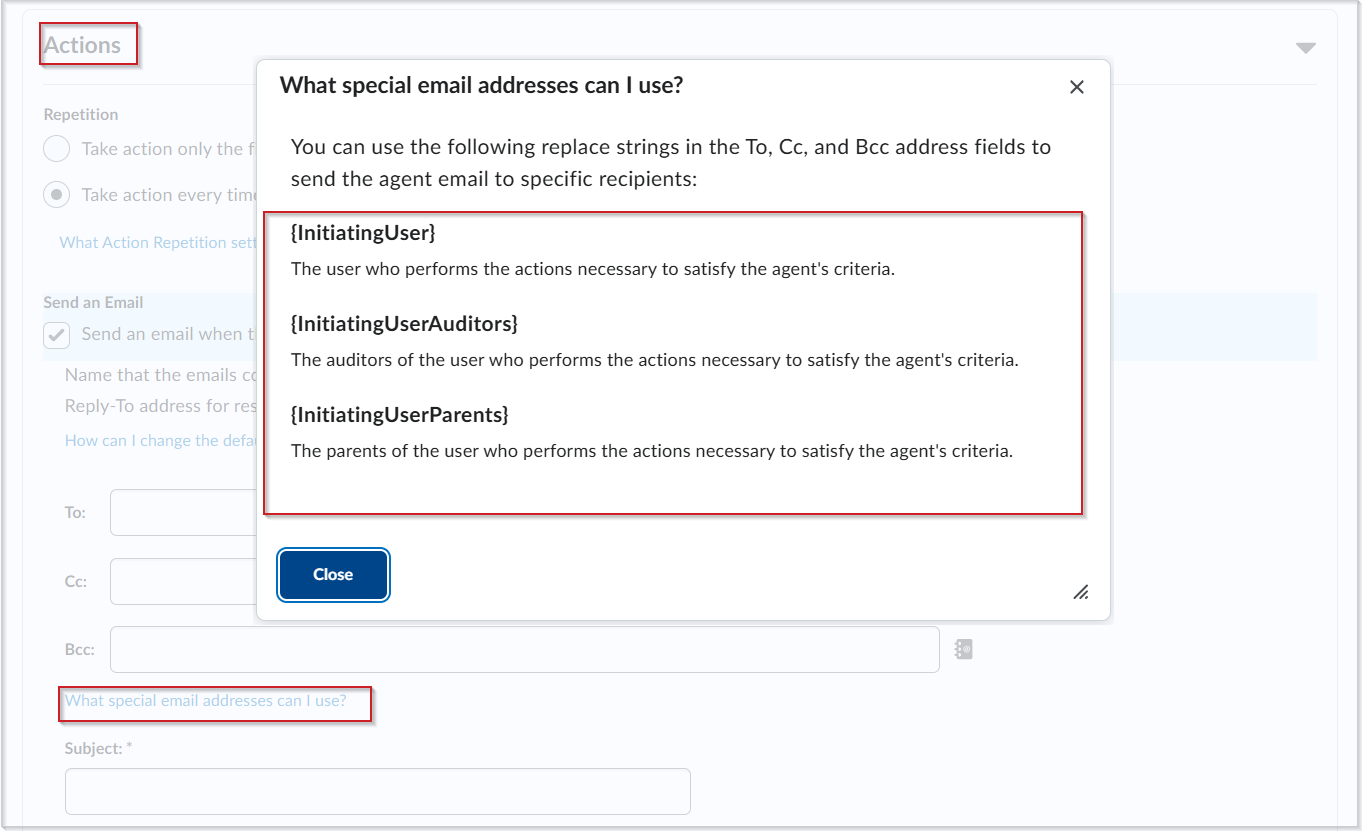
- To send the agent email to specific recipients, click What special email addresses can I use?, then copy the appropriate replacement string and paste it into the To, Cc, or Bcc fields as needed. Special email addresses include, for example, users, auditors, and parents or guardians.
- Click Save and Close.
Replace Strings for Agent Emails
The following table lists the replace strings that can be used in an email sent using an intelligent agent. It also specifies which replace strings are translated in the email body content, based on your organization or course offering locale settings.
Important: If your organization is set to a default system locale, but the course that your intelligent agent is sent from is set to Override locale preferences to a different language, the replacement string text will use the course offering locale settings. Also, not all replace strings are localized or translated based on your locale settings.
| Replace String |
Description |
For Use In |
Translated using organization or course offering locale settings? |
{InitiatingUser} |
The user who performs the action that meets the agent’s criteria |
Email address field |
No |
{InitiatingUserAuditors} |
The auditors for the user who performs the action that meets the agent’s criteria |
Email address field |
No |
{InitiatingUserParents} |
The parents of the user who performs the actions necessary to satisfy the agent's criteria. |
Email address field |
No |
{OrgName} |
The name of the organization |
Email body |
No |
{OrgUnitCode} |
The code for the Org Unit |
Email body |
No |
{OrgUnitName} |
The name of the Org Unit |
Email body |
No |
{OrgUnitStartDate} |
The start date specified for the Org Unit |
Email body |
Yes |
{OrgUnitEndDate} |
The end date specified for the Org Unit |
Email body |
Yes |
{OrgUnitId} |
The org unit ID required to make quicklinks work |
Email subject line and email body |
No |
{InitiatingUserFirstName} |
The first name of the initiating user |
Email body |
No |
{InitiatingUserLastName} |
The last name of the initiating user |
Email body |
No |
{InitiatingUserUserName} |
The username of the initiating user |
Email body |
No |
{InitiatingUserOrgDefinedId} |
The Org Defined ID of the initiating user |
Email body |
No |
{LastCourseAccessDate} |
The date the initiating user last accessed the course |
Email subject line and email body |
Yes |
{LastLoginDate} |
The date the initiating user last logged in |
Email subject line and email body |
Yes |
{LoginPath} |
The address of the login path for the site |
Email body |
No |
Perform a Practice Run
You can have an agent perform a practice run to see who will be identified by the agent without sending those users an email. Agents do not need to be enabled to perform a practice run.
- Navigate to Course Admin > Intelligent Agents.
- From the context menu of the agent you want to perform a practice run for, click Practice Run.
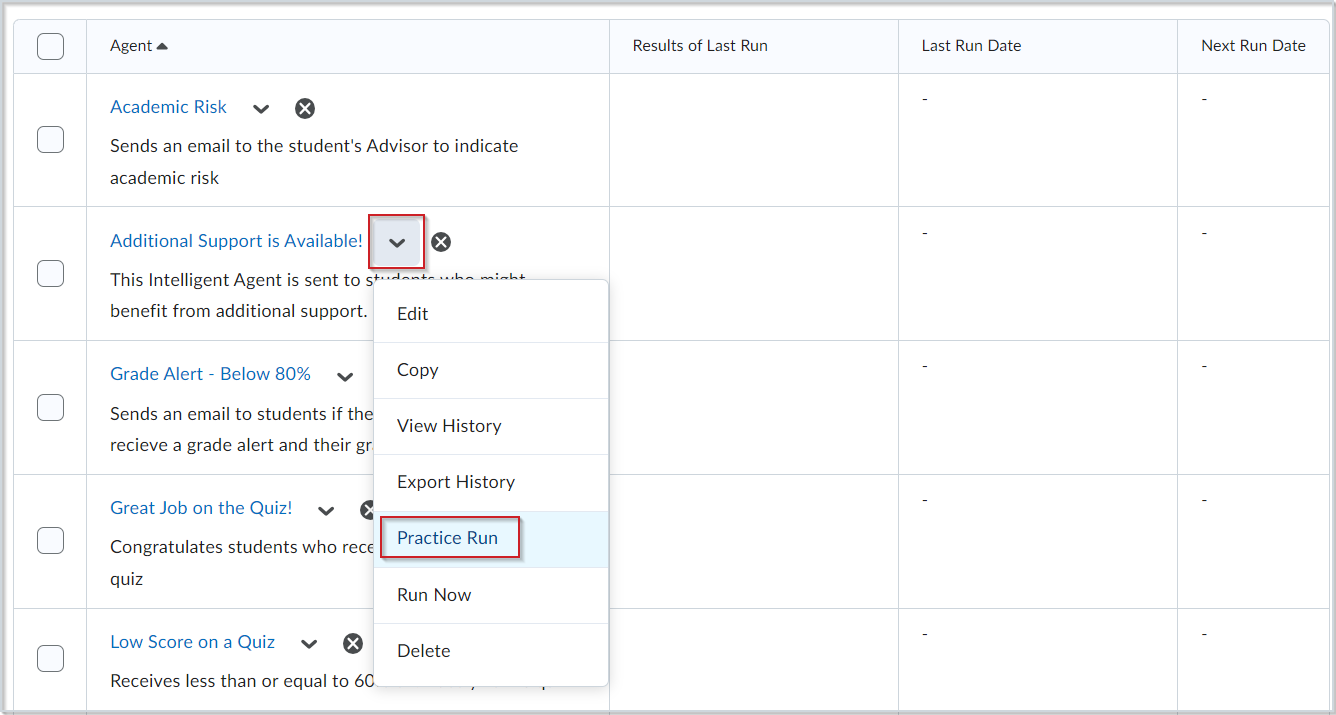
- Click Run in the Confirmation dialog.
- Click Done to return to the Agent List page.
- The results of the practice run appear in the Results of Last Run column.
Tip: You can also view the details by clicking View History from the agent's context menu.
[Insert screenshot of Practice Run in the agent context menu]
Run an Agent Manually
Typically, agents are set up to run automatically. If you do not have a regular schedule set up for an agent, you must run it manually.
When you run an agent manually, it sends a confirmation email to the user that requested or set up the agent. This email contains the following information:
- Org unit code and name
- Which agent ran
- Time and date the request was submitted
- Time and date the request was finished
- Whether the agent took action
You can set up a manual run of an intelligent agent at any time in a course with a passed end date. Agents do not need to be enabled to set up a manual run.
- Navigate to Course Admin > Intelligent Agents.
- From the context menu of the agent you want to run manually, click Run Now.
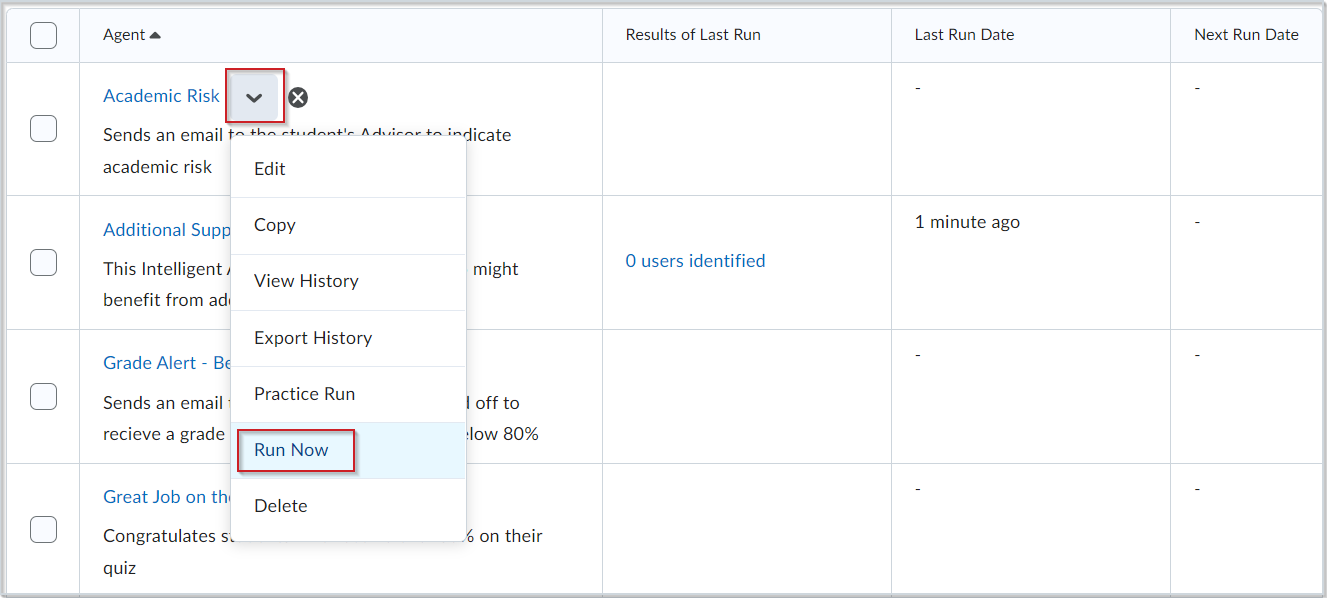
- Click Run in the Confirmation dialog.
- Click Done to return to the Agent List page.
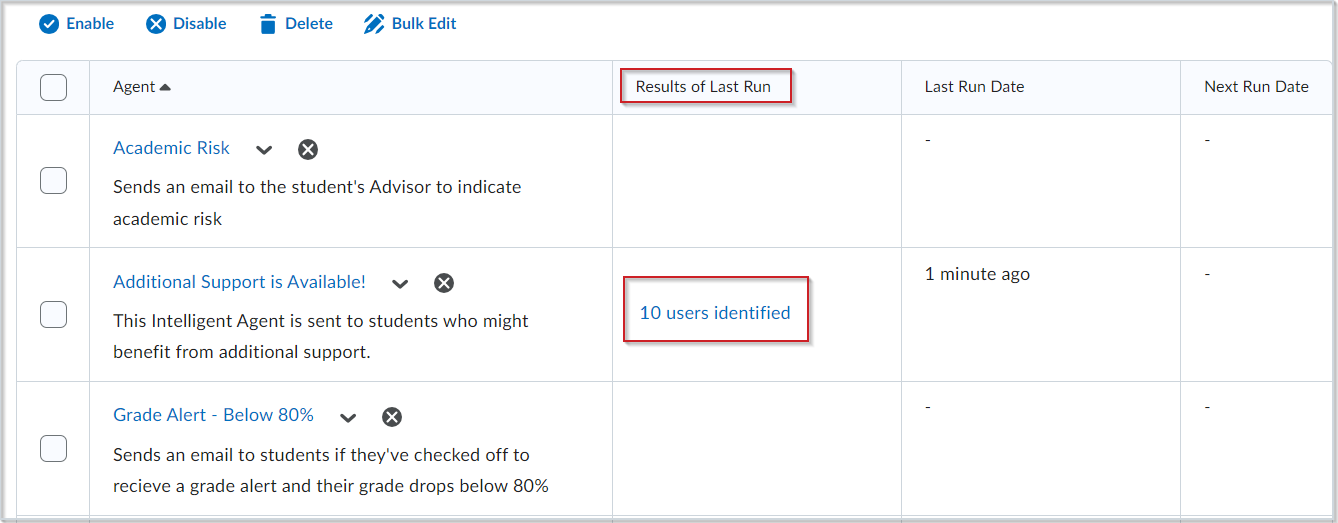
- The results of the run appear in the Results of Last Run column. You can also view the details by clicking View History from the agent's context menu.
View or Export Agent History
You can view the history of an agent to see when the agent was run, who was identified, the type of run, who ran the agent, and if any errors were encountered.
View the history of an agent
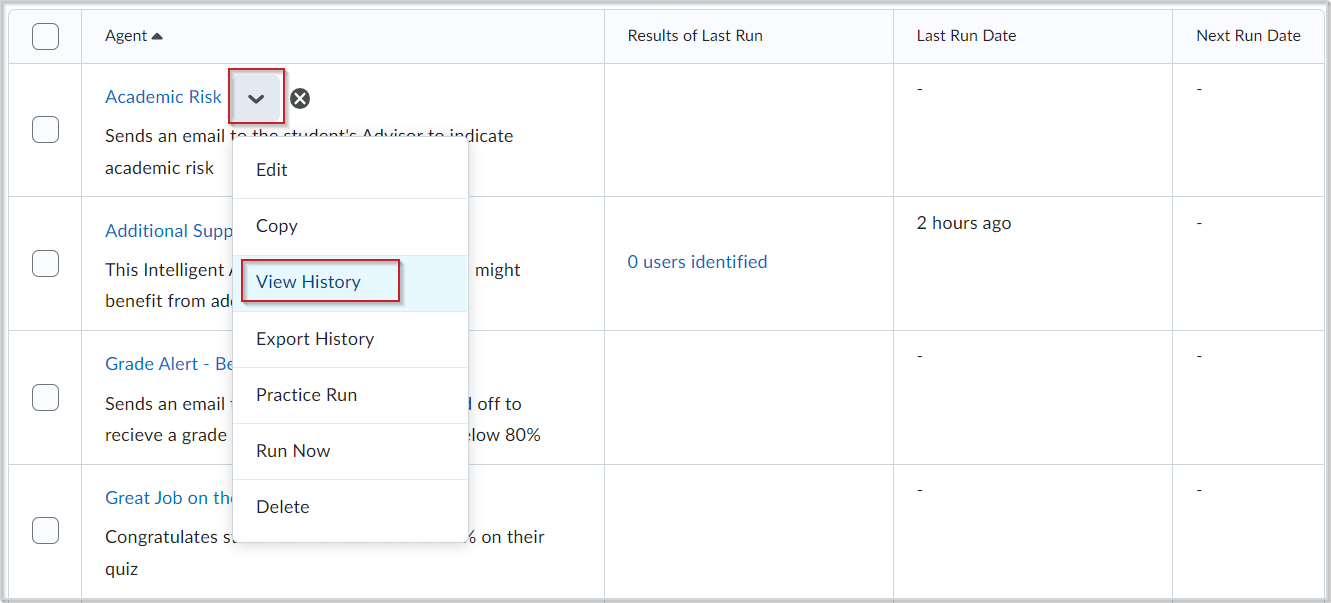
- Navigate to Course Admin > Intelligent Agents.
- From the context menu of the agent you want to view the history of, click View History.
Export the history of an agent
- Navigate to Course Admin > Intelligent Agents.
- Click More Actions, and select Export Agent History.
- Use Select an Agent to select either All agents or a specific agent.
- Select Include Practice Runs to include practice run information.
- Set the date range to include.
- Click Export.
- Click the CSV file link to download the history.
Note: You can also download this link later by navigating to the Agent List page and selecting Export History from that agent's context menu.
Manage Existing Agents
Edit an agent
You can make changes to existing agents.
- Navigate to Course Admin > Intelligent Agents.
- Select a filter option from View. The options are:
- All Agents
- By Category, which sorts the agents by their assigned category
- Enabled, which shows only agents that have been enabled
- Disabled, which shows only agents that are not currently enabled
- From the context menu of the agent you want to edit, click Edit Agent.
- To edit multiple agents at once, select two or more agents and click Bulk Edit.
- Make your changes.
- Click Save and Close.
Note: You can only change certain attributes, such as title, category, and active or inactive state, using Bulk Edit.
Restore an agent
You can restore deleted agents. All restored agents maintain existing properties and history.
- Navigate to Course Admin > Intelligent Agents.
- Click More Actions and select Restore.
- Click Restore to restore a deleted agent.
Reorder agent categories
- Navigate to Course Admin > Intelligent Agents.
- Click Edit Categories.
- Click the Sort Order of the category. Enter the number value, and then press Enter or click away from the field.
- Click Close.
Enable or disable your intelligent agent
You can enable and disable agents individually or in bulk on the Agent List page. Disabled agents display an Agent is not enabled icon beside their name.
- Navigate to Course Admin > Intelligent Agents.
- Do one of the following:
- To enable an agent, select the agent you want to enable and click Enable.
- To disable an agent, select the agent you want to disable and click Disable.

Update Intelligent Agent Settings
You can adjust the settings in the Intelligent Agent tool to set custom values for the name that emails come from and the reply-to address that responses are delivered to.
- Navigate to Course Admin > Intelligent Agents.
- Click Settings.
- Select one of the following:
- Select Use the system defaults.
- Select set custom values for this course and fill in the available fields.
- Click Save.
[Insert screenshot of Intelligent Agent Settings]
Additional information about Intelligent Agents can be found in the Brightspace Community: