Overview
This article explains the purpose of the Class Progress tool in Brightspace and highlights the main information available when monitoring learner activity and course participation. Use the Class Progress tool to track learner progress across a course or for individual students. Class Progress can help you monitor engagement, review participation, and identify learners who may need additional support.
Instructions
- From your course navbar, click Class Progress.
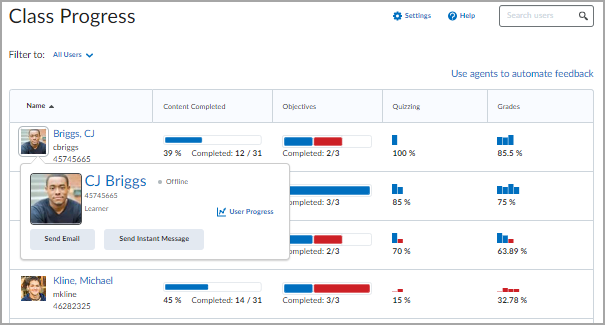
- Use the Class Progress tool to monitor course activity and learner performance. You can use it to:
- Monitor progress for one or more learners in your course.
- Prepare progress reports.
- View user profiles and communicate with learners.
- Track when a learner accesses the course and downloads course content.
- Review grades, learning objective completion, content access, discussion participation, assignment submissions, quiz submissions, checklist completion, survey responses, login history, and system access.
- Set up Intelligent Agents for learners who are falling behind in a course.
- View feedback and submissions for assignments, discussion topics, and other assessments for individual learners.
- On the Class Progress page, review the available options:
- Filter class participants by group or section membership.
- Sort the order in which learners appear in the chart.
- Review performance indicators such as Content Completed, Objectives, Assignment Submissions, Grades, Checklist Completion, Content Visited, Discussion Participation, Login History, Quiz Performance, Survey Completion, and System Access.
- Click a learner's progress data to open that learner's User Progress page.
- Use Settings to adjust which performance indicators display and the order in which they appear.
- Use the Search users field to locate a specific learner.
- For content to be included in a learner's progress, the content must meet all of the following conditions:
- The learner must have access to the content.
- The learner must appear in the course Classlist.
- The content must use a completion method of Required Automatic or Required Manual.
- The content cannot be exempt.
- Note:
- When viewing Class Progress data for an individual learner, the learner must still have access to the course and its tools for the data to display. If the course is inactive or past its end date and no longer visible to the learner, the available data may be limited.
- A maximum of four performance indicators can display at one time on the main Class Progress page.
- Login History indicates when a learner logged in to Brightspace, not necessarily when they entered a specific course. If Brightspace Data Platform is enabled, Course Logins may also be available in the learner's User Progress report.
More information: