Overview
Replace strings allow instructors to personalize Brightspace course content and communications. When used in supported areas, Brightspace replaces the string with information specific to the learner or course.
Instructions
Use replace strings in supported Brightspace tools to display personalized information, such as a learner's first name or the course name.
- Navigate to the Brightspace area where you want to add personalized text.
- Click into the text field or Brightspace Editor area where you want the personalized information to appear.
- Type the replace string, including the curly brackets.
{FirstName} displays the learner's first name.{LastName} displays the learner's last name.{UserName} displays the learner's username.{OrgUnitName} displays the name of the course or organization unit.{OrgUnitCode} displays the course or organization unit code.
- Save or publish the item.
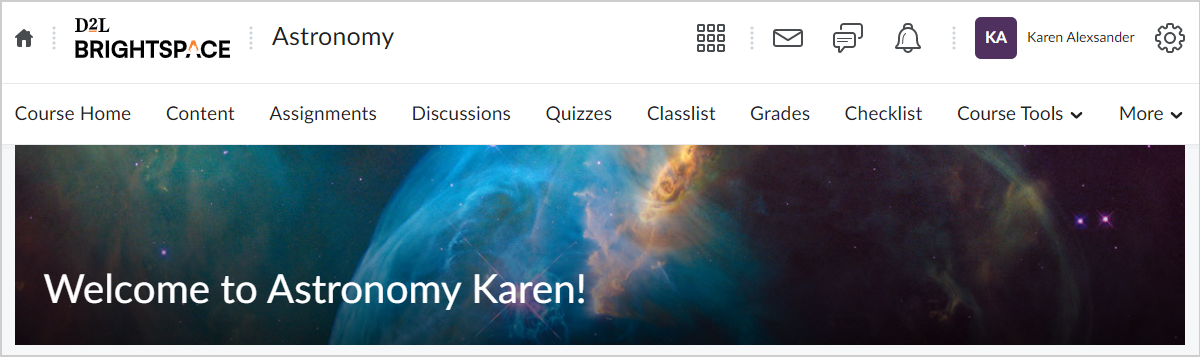
- Preview the item as a learner, if available, to confirm that the replacement string displays the expected information.
Note: Replace strings are written with curly brackets. For example, enter {FirstName} to display the learner's first name.
Common Uses for Replace Strings
Replace strings are useful in areas such as course homepage widgets, custom navigation bar links, navigation bars, mail templates, grades when adding bulk feedback, and language terms.
Example: Add a Learner's First Name to the Course Banner
You can use a replace string to display the learner's first name in the course banner.
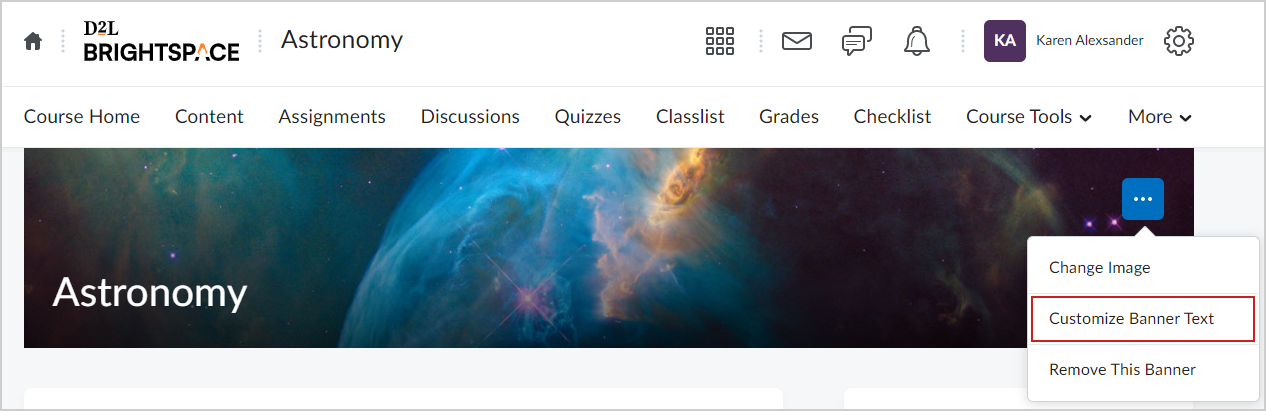
- From your course homepage, locate the course banner.
- Click the Banner Settings menu.
- Click Customize Banner Text.
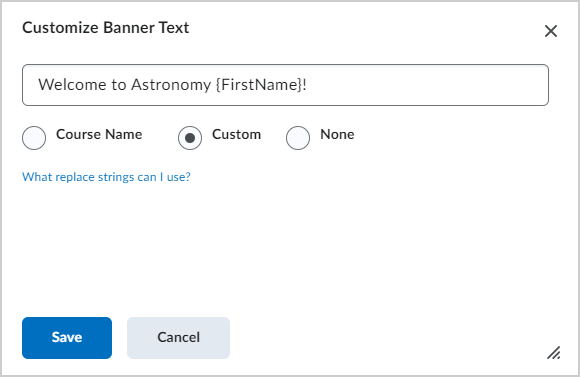
- In the Customize Banner Text dialog, select Custom.
- Enter the banner text and include the replace string
{FirstName}.
- Example:
Welcome, {FirstName}
- Click Save.
Evaluation Rules
Replace strings behave differently depending on where they are used.
- Content topics: Replace strings are evaluated only once when they are first entered. If the topic is copied to another course later, the original replaced value may remain.
- Other supported tools: Replace strings are evaluated each time the item is viewed. If the item is copied to another course, the replace string displays information for the new course or viewer.
Note: Not all replace strings apply to all Brightspace tools. Test the item before relying on a replace string in a live course.
Additional Replace Strings
The following replace strings may be available in supported Brightspace tools:
| Replace String |
Description |
{OrgId} |
Displays the ID number of the organization. |
{OrgName} |
Displays the name of the organization. |
{OrgUnitId} |
Displays the ID number of the organization unit. |
{OrgUnitName} |
Displays the name of the organization unit. |
{OrgUnitCode} |
Displays the code for the organization unit. |
{UserId} |
Displays the internal user ID number. |
{UserName} |
Displays the user's full name or username. |
{OrgDefinedId} |
Displays the organization-defined ID for the user. |
{Email} |
Displays the user's internal email address. |
{ExternalEmail} |
Displays the user's external email address. |
{RoleName} |
Displays the user's role name. |
Additional information and instructions for using replace strings can be found on this page in the Brightspace Community site https://community.d2l.com/brightspace/kb/articles/6105-automatically-customize-course-content-using-replace-strings