Overview
Rubrics allow instructors to provide clear assessment criteria, grades, and feedback for learners. This article explains how to create a rubric in Brightspace using the Rubrics tool.
Instructions
To create a new rubric:
- In your Brightspace course, navigate to Rubrics by going to Course Admin > Rubrics.
- Click New Rubric.
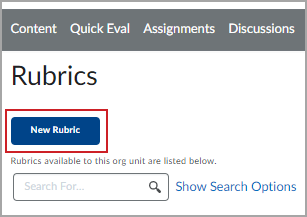
- Enter a Name for the rubric.
- Select the rubric Type.
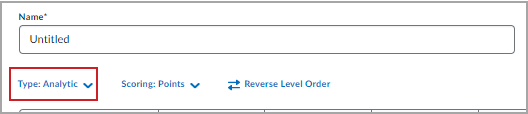
- Analytic: Allows you to add multiple criteria within the rubric.
- Holistic: Uses a single criterion to assess overall achievement.
- Select the Scoring type.
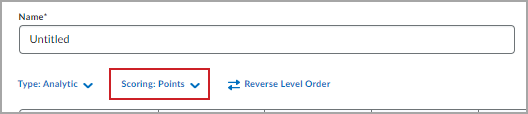
- Points: Each rubric level has the same score for each criterion.
- No Score: No point values are set.
- Custom Points: Each level in each criterion can have a unique point value.
- Click New Criterion to enter the criterion name, level, and point value.
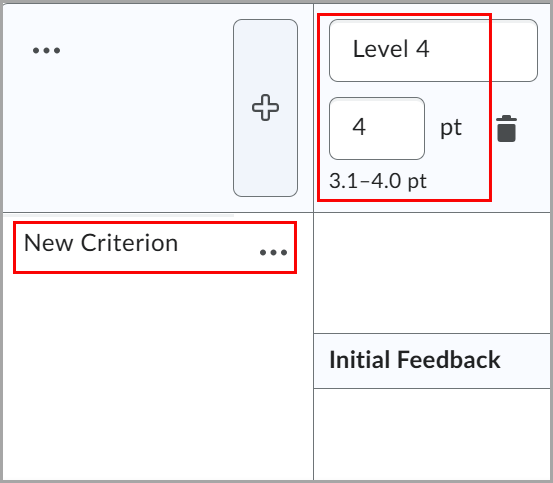
- Add or remove rubric levels and criteria as needed.
- To add a level, click the Add new level before (+) button.
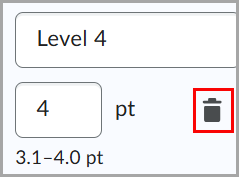
- To delete a level, click the trash bin icon.
- To add a criterion, click + Add Criterion.
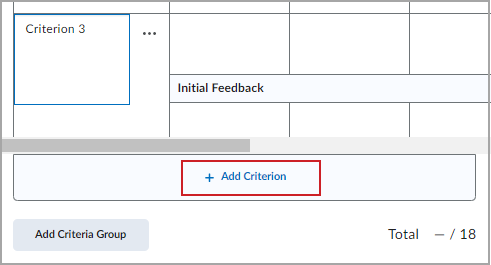
- To delete a criterion, click Delete Row.
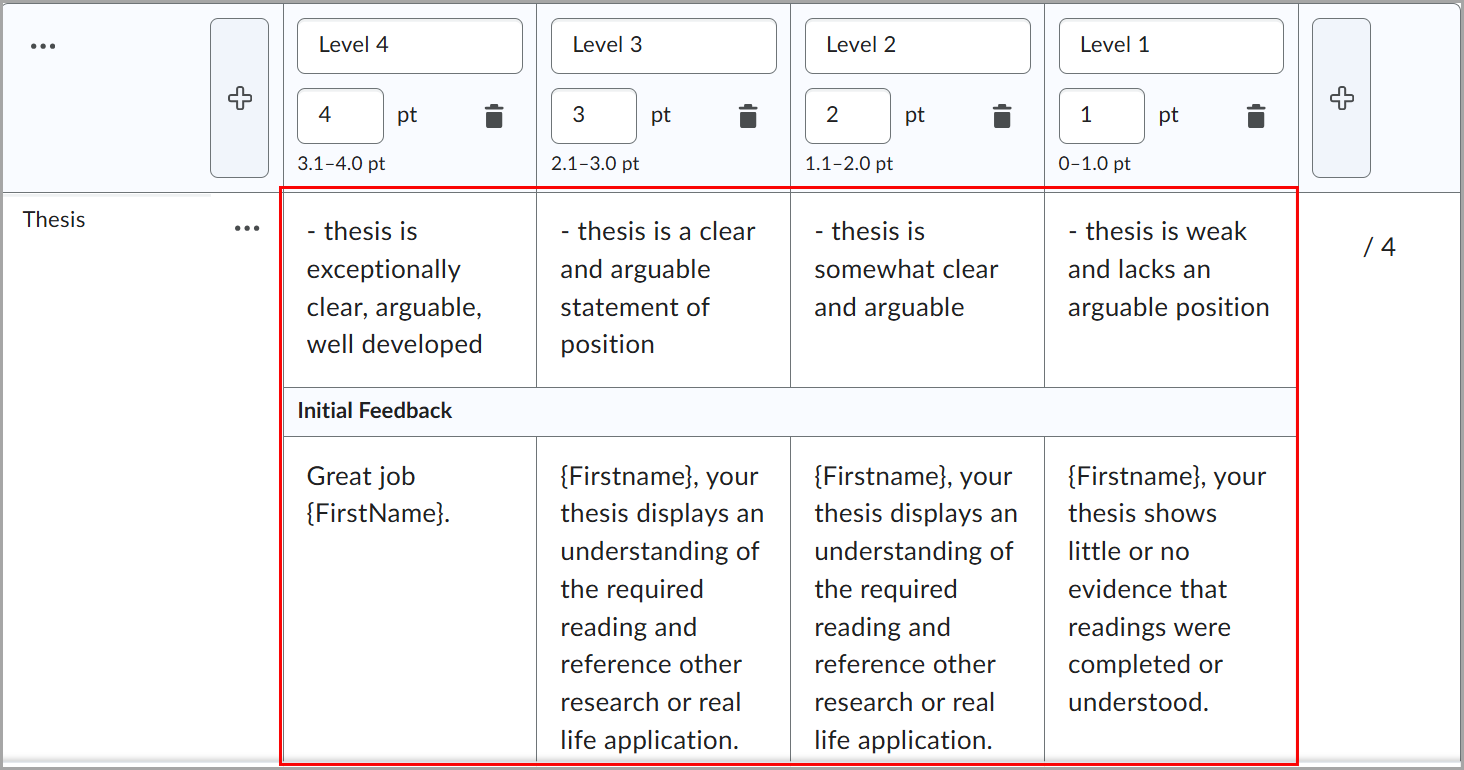
- Add a description for each criterion level.
- Add Initial Feedback for each level, if needed.
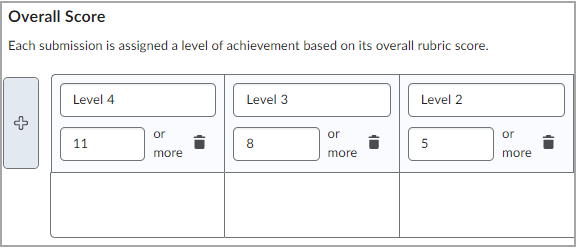
- Adjust the Overall Score settings to determine how the overall rubric score maps to achievement levels.
- Expand Options and review the available settings.
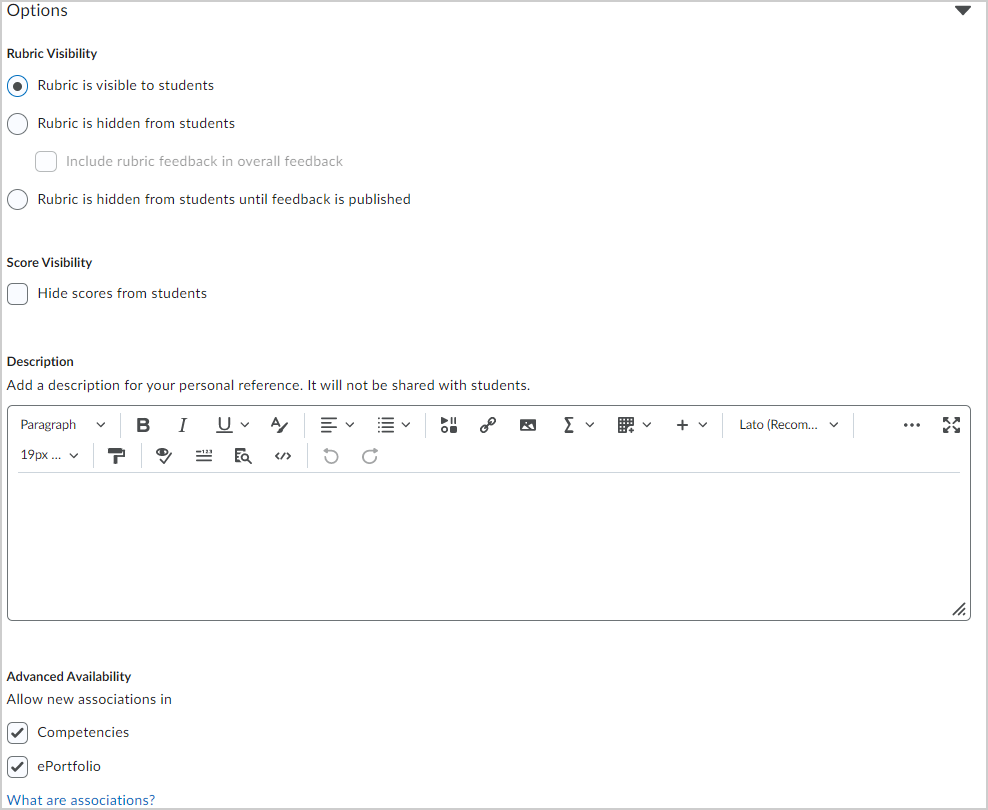
- Rubric Visibility
- Score Visibility
- Description
- Advanced Availability
- When you are finished, click Close.
Note: You can add up to 500 characters to the description of each criterion.
Note: If you need to set minimum or maximum scores for ungraded rubric criteria, do not use a Holistic rubric. That option is not available for Holistic rubric types.
To edit an existing rubric:
- Navigate to Rubrics.
- Locate the rubric you want to edit.
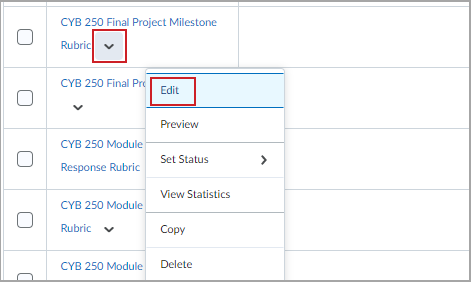
- Click the More Options arrow beside the rubric.
- Click Edit.
- Make the needed changes.
- Click Close.
Important: Rubrics that have already been used to assess learner work are locked. In most cases, only text fields can be edited. To make structural changes, such as changing criteria, levels, or point values, copy the rubric and edit the new version.
Copying a rubric creates a new rubric based on an existing one.
- Navigate to Rubrics.
- On the Rubrics page, click the context menu for the rubric you want to copy.
- Click Copy.
- Click the copied rubric to edit it.
To delete a rubric:
- Navigate to Rubrics.
- On the Rubrics page, click the context menu for the rubric you want to delete.
- Click Delete.
Note: You can only delete a rubric in the org unit where it was created. You cannot delete a rubric that is attached to certain activities or grade items.
For additional information and options regarding rubrics, visit the Brightspace community page at: https://community.d2l.com/brightspace/kb/articles/5795-create-a-rubric-using-the-rubrics-tool